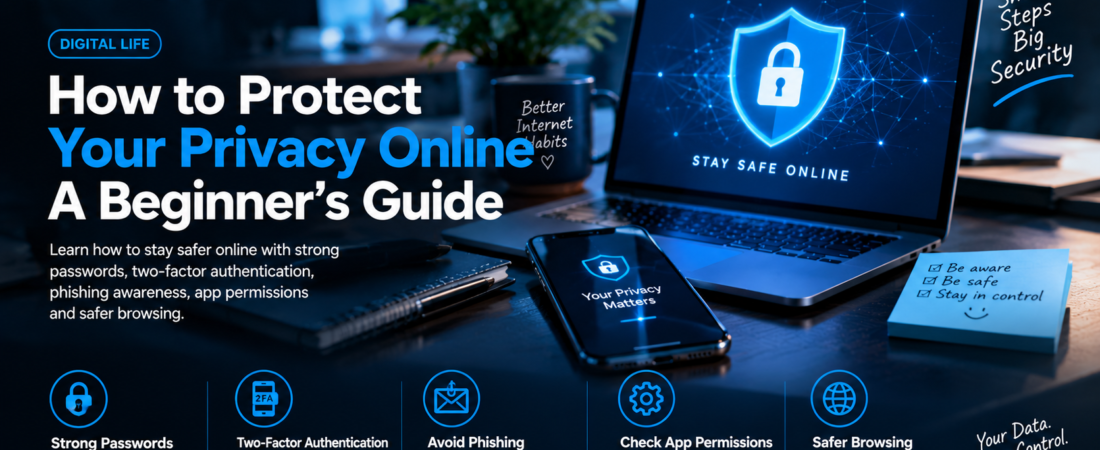

Online privacy is the ability to have a say in what happens to information about you: what is collected, who can access it, and how it may be used. It does not mean avoiding the internet or keeping every detail secret. Rather, it means understanding that personal information has value and making informed choices about when to share it. These choices can affect your safety, comfort, and ability to use digital services on your own terms.
Ordinary online activities can create data traces, often without a person noticing each one. Messaging may reveal contacts and communication patterns; shopping can disclose payment details, addresses, and preferences; and searches may indicate interests or concerns. Apps and websites can also collect account information, device details, location, browsing activity, and information about how someone interacts with a service. Some data is needed to provide a feature, while other information may be stored, shared with partners, or used to personalize advertising. The specific practices vary, so reviewing settings and privacy notices can help clarify what is involved.
Protecting privacy is not about having something to hide. It is a practical way to reduce exposure to risks such as identity theft, account takeovers, unwanted tracking, and targeted scams. The less unnecessary information that is publicly available or accessible to others, the fewer opportunities there may be for misuse. Privacy habits can also limit intrusive personalization and help people retain control over their digital presence.
For beginners, this does not require mastering every technical detail or changing every online habit at once. A few practical steps—using strong, unique passwords, enabling two-factor authentication, checking app permissions, and pausing before sharing personal details—can make a meaningful difference. It is also useful to keep devices and software updated and to think carefully about links and requests for information. Online privacy is an ongoing practice, not a one-time task. Small, consistent decisions can improve protection while allowing people to continue messaging, shopping, searching, and using the services they need.
Passwords that are reused or easy to guess can turn a single security incident into a chain reaction. If one website is breached, attackers may try the exposed email address and password on other services, including accounts that hold financial or personal information. Predictable choices such as names, birthdays, common words, or small variations of an old password are especially risky. A password that feels memorable is not necessarily difficult for criminals to predict, particularly when details about you are public online. Use a different long password for each important account so a leak elsewhere does not automatically provide access.
Prioritize email, banking, and social media accounts, since they can provide access to other services or expose sensitive data. For each, create a long, unique password or passphrase; combining several unrelated words with numbers or symbols can make a passphrase easier to remember, though length and uniqueness matter more than decorative complexity. Avoid basing it on personal facts, and do not reuse it for less important accounts. A reputable password manager can generate unpredictable passwords and store them in an encrypted vault, removing the need to memorize every login. Choose a trusted provider, keep its software updated, and use its built-in tools to identify reused or weak credentials.
Protect the manager itself with a strong master passphrase that is unique and difficult to guess; this single credential unlocks your stored passwords, so avoid reusing one from another account. Enable multifactor authentication when available, and set up the provider’s recovery options in advance. Store any recovery codes somewhere secure and separate from your everyday devices, so a lost phone or forgotten login does not permanently lock you out. Change a password promptly if a service reports a breach, you notice suspicious activity, or you learn that a credential was exposed. Avoid frequent scheduled changes that encourage weak variations; instead.
Two-factor authentication (2FA) adds a second proof of identity to the sign-in process. Instead of relying only on a password, an account asks for another form of verification, such as a temporary code from an authenticator app, a physical security key, or a prompt you approve on a trusted device. This extra step can make a stolen or guessed password less useful to someone trying to access your account. It does not eliminate every risk, however: phishing, compromised devices, and account recovery weaknesses can still create problems.
When choosing a method, security keys and authenticator apps are generally stronger options than codes sent by text message. A security key is a physical device that you connect or tap when signing in, while an authenticator app generates codes on your phone. Text messages can be vulnerable to phone-number takeover and other attacks, but receiving a code by text is usually preferable to having no second factor at all. If an account offers several choices, select the strongest practical option you can use consistently.
Start by turning on 2FA for accounts that could expose other parts of your digital life. Email is a priority because it can be used to reset passwords elsewhere. Next, protect financial services, cloud storage, and social media accounts, especially those containing sensitive information or connected to many other services. Follow each provider’s setup instructions and store any backup codes somewhere secure, such as a reputable password manager or another protected location separate from your device. Backup codes can help you regain access if your phone or security key is lost. Never share a login or verification code with someone who contacts you unexpectedly, even if they claim to represent a familiar company. Legitimate support staff should not ask you to disclose a one-time sign-in code.
Phishing is an attempt to trick you into revealing credentials, payment details, or other sensitive information. It can arrive through email, text messages, phone calls, social media, or messaging apps. A message may claim to come from a bank, delivery company, employer, government agency, or familiar online service. Its purpose is often to persuade you to act before you have time to check whether the request is genuine.
Look for warning signs such as unexpected urgency, threats of account closure, unusual requests, suspicious links or attachments, and sender addresses that do not match the organization’s official domain. Be especially cautious if someone asks you to provide a password or a one-time security code. That code can allow another person to access your account, even if the request appears to be part of a routine verification. Poor spelling can be a clue, but polished branding, professional wording, and a familiar name do not prove that a message is authentic.
Avoid using a link or phone number supplied in a message to resolve a supposed problem. Instead, open the relevant app or type the service’s known web address into your browser. If you need help, contact the organization using a phone number or support channel you have independently verified, such as details on its official website or payment card. This gives you a safer way to confirm whether the request is real without relying on information provided by the sender.
If you clicked a link or shared information, stay calm and stop interacting with the sender. From a trusted device, change any affected passwords, using a unique password for each account, and review security settings and recent activity. Sign out of unfamiliar sessions and enable multifactor authentication if available. Contact the service provider to report the incident and secure the account. If you shared payment details or transferred money, contact your bank or card issuer promptly and follow its advice. Acting quickly can limit further access or losses.
Many apps request access to device features such as your location, contacts, photos, microphone, or camera. Some permissions are essential to an app’s main purpose, but others may be optional or used for additional functions. A mapping app, for example, may need location access to provide directions, while a simple note-taking app may have little reason to read your contacts. Before granting access, consider whether the feature is necessary for what you want the app to do. If a request seems unrelated, deny it and check whether the app still works as expected.
Review permissions through your device’s current privacy controls. Operating systems provide settings where you can see which apps can access sensitive information and change those choices. When available, select the least access that still supports the app’s useful features. You might allow location only while using an app rather than continuously, or grant access to selected photos instead of your entire library. You can also remove permissions from apps you no longer use. Menu names and available options differ across devices and software versions, so consult the current settings on your operating system rather than relying on instructions written for another model.
Privacy choices within an app matter as well. Check its settings for options to reduce tracking, limit data sharing, or make a profile less visible. Avoid publishing details such as your home address, phone number, date of birth, or travel plans unless sharing them is necessary. Treat online quizzes, surveys, and unfamiliar services with care, especially when they ask for personal details that seem excessive for the service provided. Read the explanation of how information will be used, and provide only what is required. Permission reviews are not a one-time task: revisit them periodically, particularly after installing an app, changing its features, or updating your device. These simple checks can reduce unnecessary access while preserving the functions you choose to use.
Safer browsing begins with everyday habits that reduce the chance of reaching malicious pages or sharing more information than intended. Keep your browser, operating system, and apps current by installing updates promptly. These releases often repair security weaknesses that attackers may exploit, and they can also improve privacy controls. Turn on automatic updates where practical, and restart devices when needed so patches take effect. Use a supported browser and remove extensions you no longer use, since unnecessary add-ons may access browsing data.
Before opening links in messages or search results, consider whether the source is expected and relevant. Unexpected prompts to download files, install software, or enable macros deserve caution; avoid them unless you can verify the request independently. When signing in or paying, inspect the domain carefully for misspellings, extra words, or unusual endings. A familiar logo is not proof that a page is genuine. Navigate to a known address yourself instead of following an unsolicited link.
HTTPS encrypts the connection between your browser and a website, helping protect information in transit from interception. Look for the padlock or HTTPS indicator, but treat it as a basic connection safeguard, not a trustworthiness rating. A fraudulent site can use HTTPS too, so verify the organization and address before entering sensitive details. Use built-in tracking protections, block third-party cookies where appropriate, and review reputable privacy settings to limit unnecessary collection.
Private or incognito browsing is useful for limiting certain records saved on the device, such as local history and cookies after a session. However, it does not hide activity from websites you visit, your employer or school on managed networks, or your internet provider. Downloads and bookmarks may remain, and accounts you sign into can still associate activity with you. Choose private mode for shared-device convenience, not as a substitute for network privacy.
Public Wi-Fi and shared devices add uncertainty to everyday online activity. A network in a café, hotel, airport, or other public place may be operated by someone you do not know, and similarly named networks can make it difficult to identify the legitimate connection. A shared computer may also retain browsing history, downloaded files, or account information after you leave. Treat these environments as less private than your own home network and personal device, especially when handling information that could expose your identity or finances.
When possible, avoid accessing banking, payment services, health records, or other sensitive accounts on a shared device you cannot trust. If you must use one, do not ask the browser to save passwords or payment details, and sign out of every account when finished. Close the browser and remove downloaded files where appropriate. On public Wi-Fi, check the network name with staff or the venue’s official information rather than assuming a familiar name is genuine. Be cautious of unexpected login pages, pop-ups, or prompts asking you to install software or provide credentials; these can be used to collect information.
Many modern websites use encryption, commonly indicated by “https” and a lock symbol in the browser. This helps protect information exchanged with that site, but it does not prove that a network is trustworthy or that a page is legitimate. A reputable virtual private network (VPN) can encrypt traffic between your device and the VPN service, offering an extra layer of protection on some networks. However, a VPN does not make you anonymous, prevent phishing, make unsafe downloads safe, or stop someone from compromising an account with stolen credentials. Choose a service carefully and understand its privacy practices. For sensitive tasks, using your personal mobile connection instead of public Wi-Fi is often a practical option, provided your device and account are secured.
Reducing the amount of personal information you share can limit what is exposed if an account or service is compromised. When signing up, provide only details that are required for the service to work. If a field is optional, consider whether there is a clear reason to fill it in. Avoid posting sensitive information publicly, including your home address, travel plans, personal phone number, or answers that could help someone guess account security details. Review privacy settings on social platforms, and think carefully before sharing information that could identify your location or daily routines.
It is also useful to review accounts you no longer use. Old shopping, forum, and app accounts may still hold personal details, payment information, or reused passwords. If you no longer need an account, delete it through the service’s official settings when possible. If deletion is unavailable, remove stored information and disable the account. Keep a simple record of important services so you can revisit them periodically without retaining unnecessary sensitive notes.
Give particular attention to your primary email account. It often receives password-reset links and security notifications, so access to it can affect many other accounts. Use a unique, strong password and enable multifactor authentication where available. Check that the recovery email address and phone number are current and belong to you. Turn on sign-in or unusual-activity alerts, and store essential recovery codes in a secure place, such as a reputable password manager or another protected offline location. Do not leave them in an easily accessible inbox or an unprotected document.
Preparation also includes knowing how to respond to possible exposure. Check reputable breach-notification services and official security notices from companies you use. Treat unexpected messages cautiously: rather than following a link in an alert, visit the service’s website or app directly and review its security guidance. If an account is affected, change its password, end unfamiliar sessions, and check recovery settings. These habits are not a reason to panic or assume every notice signals immediate harm. They make problems easier to identify, limit, and resolve if they occur.
Turn privacy protection into a short, repeatable checkup rather than a major project. Start with a few practical steps: use a unique password for every account, enable two-factor authentication (2FA) on high-value accounts, review which apps can access your location, contacts, camera, and microphone, and install device and software updates. Before responding to an unexpected message, call, or login prompt, pause. Verify the request through a separate, trusted channel instead of clicking links or sharing codes. These habits address common risks without requiring advanced technical knowledge or constant attention.
For an initial review, work in brief sessions so the process feels manageable. Begin with your email account, because it may be used to reset passwords elsewhere, then check financial accounts and payment services. Confirm that recovery details are current, passwords are unique, and 2FA is enabled where available. In another session, review app permissions and update your phone, computer, browser, and frequently used applications. You do not need to change everything at once; completing a few important actions is more useful than starting an ambitious audit and abandoning it.
Revisit account and device settings every few months, and after a major change such as replacing a phone, opening an important account, or noticing unfamiliar activity. Choose reputable password managers, security software, and other privacy tools, and consult the official support pages for your device, apps, or account provider when instructions differ. Online services change their menus and options, so reliable, current guidance can help you avoid mistaken settings. Focus on consistent habits rather than chasing perfect privacy: no checklist removes every risk, but each improvement can reduce avoidable exposure. With a few minutes at a time, you can build stronger protection step by step and make privacy checkups a normal part of using your devices.